 SpawnSweep
Clean up unused Xcode simulators on Mac
Shut down a booted iOS simulator to release its runtime resources and keep its apps and data for later. To free disk space, review unused simulator devices and separately review installed Xcode runtimes. Deleting a simulator device removes its local apps and test data.
Shut down the specific simulator you finished using
With Xcode’s command-line tools selected, run:
xcrun simctl list devices booted
xcrun simctl shutdown "DEVICE-UDID"
Replace DEVICE-UDID with the identifier of the simulator you want to shut down. Check which test run owns the simulator first if an agent is still building or testing.
Reclaim disk space from old simulator devices
- To review and remove a specific device, use Xcode → Window → Devices and Simulators → Simulators. Keep devices that hold test data you need.
- Run
xcrun simctl list devices unavailableto review devices that have no available runtime. If you intend to delete that entire group, usexcrun simctl delete unavailable. - To uninstall a runtime, use Xcode → Settings → Components. Confirm it is no longer needed for any simulator you plan to use. Apple’s simulator device and runtime guide
Review simulator cleanup in SpawnSweep
In Resources → Devices, Booted devices lists running simulators with detected session context when available. Choose Shut down to review stopping a simulator. Unused devices shows candidates for removal and their disk usage. Choose Review removal to see the selected devices before deleting them.
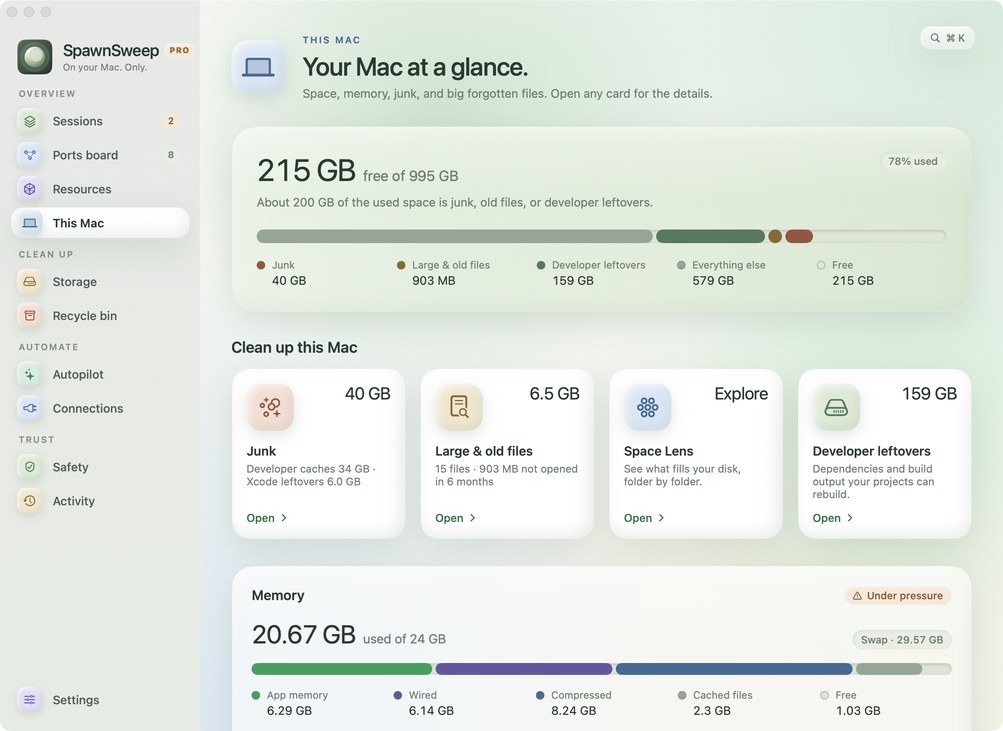
The Storage view also surfaces Xcode DerivedData, which consists of build products and indexes. SpawnSweep Pro includes additional DerivedData cleanup through the junk cleaner.
Will shutting down a simulator remove its installed apps?
Shutdown keeps the device and its data on disk. Deleting the device removes its apps and test data. If you plan to resume a test, shut down the device so you can boot it again later.
If the test also left a Metro or other dev server running, check which process uses its port.